
AI asset generation
for robotics simulation.
Describe an object, its materials and the parts that should move. Use a prompt or add a reference image, then follow the result through the studio to a USD download.
USD output. Inspect the result for your task and simulator.
From your brief
to a USD result.
The studio keeps preparation, generation progress and output inspection in one workflow.
Prepare your brief
Use text or a supported reference image. Sign in to generate and follow any email verification required for your account.
Follow the generation
Follow stage progress in the studio, then preview the completed result. Find the submitted brief and result in your generation history.
Inspect and download
Review the completed result and its USD properties. Check supported requirements and test the file in your simulation workflow.
Make the brief
specific to the task.
Describe what makes the object useful in your scene. Appearance, scale and moving parts each give you something concrete to check in the result.
For example: A two-shelf warehouse cart with a steel frame, a push handle and four swivel wheels. Leave the shelves open for a robot to place objects.
- Shape and scale
- Describe the object, its proportions and the features that matter to your task. Check the delivered dimensions before using it in a scene.
- Materials and interaction
- Name the surface materials and any doors, drawers or other moving parts. Inspect the authored physics and joints in the result.
- A reference image
- Attach a PNG, JPEG or WebP image to guide the appearance. Keep the text brief specific about details the image does not show.
From a reference.
To moving parts.
One image, an AI-generated washing machine. Watch its lids open in the simulation capture.
Build geometry, add textures, then prepare collisions, physics and joints where needed. Inspect the completed result before downloading the USD package.
Create your asset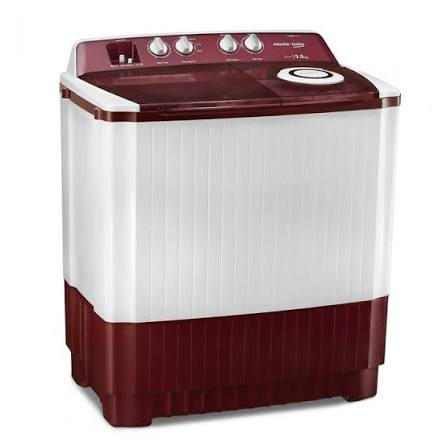
Inspect the content
your robot will use.
USD is the delivery format. The properties present in each result and their behavior in your target simulator determine whether it fits your task.
Read the compatibility guidanceCheck supported SimReady requirements- Geometry and materials
- Inspect the shape, scale, surface appearance and any referenced textures.
- Collision and motion
- Check collision shapes, rigid bodies, mass properties and joints where the object needs them.
- Task behavior
- Load the USD in your target simulator and try the grasp, contact or motion your robot needs.
Choose the path
that fits the work.
Use an existing library asset when it fits, generate a missing object, or scope custom authoring for a specific physical interaction.
Browse the asset libraryNeed a complete environment?Credits and usage rights
Review the credit requirement in the studio before starting. Each environment variation is a separate output.
Free-plan generations are for noncommercial use. Paid plans include commercial use of generated content. The simgenerator licence does not permit resale, redistribution or sublicensing of the files.
Review plans and licence termsBefore you generate.
What can I use as input?
Start with a text prompt. You can also attach a PNG, JPEG or WebP reference image after signing in. Describe the shape, surfaces and interactions you want the asset to support.
What format do I receive?
The generation output is USD (OpenUSD). Review the completed stages and download the delivered file from the studio. URDF and MJCF are not standard generation exports.
Does generation guarantee simulator compatibility?
Compatibility depends on the delivered properties, your simulator version and your task. Inspect the result, review available validation findings and test it in your target stack.
When should I choose a hand-authored asset?
Browse the library when an existing object fits your task and you want to inspect its available specifications before downloading. Use generation to explore a missing object, or discuss custom authoring when you need an agreed specification.
Start with the object
your task needs.
Open the studio, prepare your brief and review the generation settings.